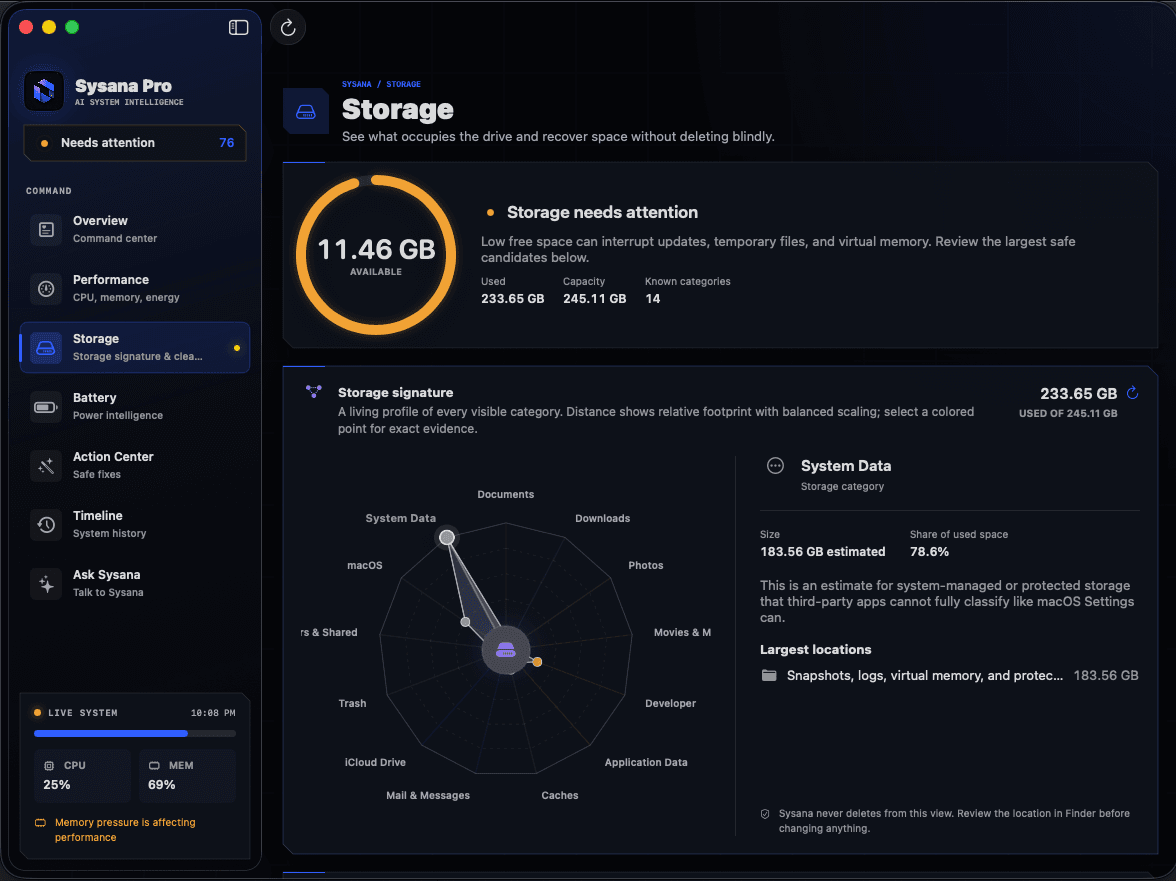
Start with the evidence.
There is no single Clear System Data button. System Data is a changing category that can include logs, caches, virtual-memory files, app support files, plug-ins, and other data that does not fit a more specific category. Restart first, review the built-in Storage view, remove only files you recognize or data through the app that created it, and let macOS manage temporary and purgeable space.
What does System Data mean on Mac?
System Data is a classification, not one folder. macOS uses it for files that do not belong in clearer categories such as Applications, Documents, Photos, or Music. It can include logs, caches, virtual-memory files, fonts, plug-ins, app support files, and temporary resources.
The number can change as macOS indexes files, creates temporary working data, performs updates, or recalculates storage. A large reading is a reason to investigate, but it does not prove that all of those files are disposable.
Seven safe ways to reduce System Data
Start with reversible actions and known files. Check the Storage view again after each meaningful change because the category may take time to recalculate.
- Restart the Mac
A restart closes active temporary files and lets macOS recalculate some storage. Wait a few minutes after signing in before comparing the number.
- Review the built-in Storage view
Choose Apple menu > System Settings > General > Storage. Work through visible categories such as Applications, Documents, Messages, and Trash before touching hidden folders.
- Remove downloads you recognize
Delete old installers, disk images, archives, and exported media you no longer need. Confirm important files are backed up first.
- Clean large apps from inside the app
Developer tools, virtual machines, video editors, music tools, and games can create large support files. Use their own managers to delete simulators, virtual disks, renders, downloads, or media caches.
- Review device backups
Old iPhone or iPad backups can be substantial. Use Finder's device backup management so you can identify the device and backup date before deleting one.
- Empty Trash when ready
Files in Trash still occupy storage. Open it, verify that nothing is needed, then empty it.
- Use Safe Mode only for troubleshooting
Safe Mode can clear certain system caches and test whether startup software contributes to the issue. Follow Apple's steps for your Mac model, then restart normally.
Time Machine snapshots and purgeable space
Time Machine may keep local snapshots when the backup disk is unavailable. macOS treats their space as available and automatically removes snapshots as they age or when storage is needed. Connecting the backup disk and completing a backup can help normal management continue.
Avoid copied Terminal commands that force-delete snapshots or other system data. A command without the right context can remove useful recovery history while producing little lasting benefit.
Files you should not delete
Do not delete the /System folder, random items in /Library, virtual-memory files, security databases, plug-ins, or unfamiliar app-support folders just because they appear large. Names and locations alone do not show whether a file is safe to remove.
If a third-party app created the data, use that app's documentation or uninstall process. If ownership is unclear, make a backup and ask the developer or Apple Support before changing it.
When a large System Data reading needs more help
Seek help if the category continues growing quickly after a restart, the Mac reports disk errors, free space disappears during light use, or you cannot identify the source. Keep a current backup before deeper diagnosis.
Record the free-space value, the System Data value, and what was running when the change occurred. That timeline is more useful to support staff than a single storage screenshot.
Understand what your Mac is telling you.
Sysana connects performance, memory, storage, battery, energy, and thermal context in one clear diagnostic view. You review every recommendation.
Frequently asked questions
Why is System Data so large on my Mac?
It may include app support files, logs, caches, virtual-memory files, local working data, and files that macOS has not classified elsewhere. The figure can also change while storage is being recalculated.
Can I delete the System Data category directly?
No. It is a collection of different file types, not a single removable folder. Reduce known contributors through Storage settings and the apps that created them.
Why did System Data change after restarting?
A restart closes temporary files and can trigger storage reclassification. macOS and apps may then recreate required caches, so some movement is normal.
Are Time Machine local snapshots taking all my space?
Local snapshots can appear in storage calculations, but macOS treats their space as available and removes them when needed. Let Time Machine manage them unless Apple Support is helping diagnose a specific problem.