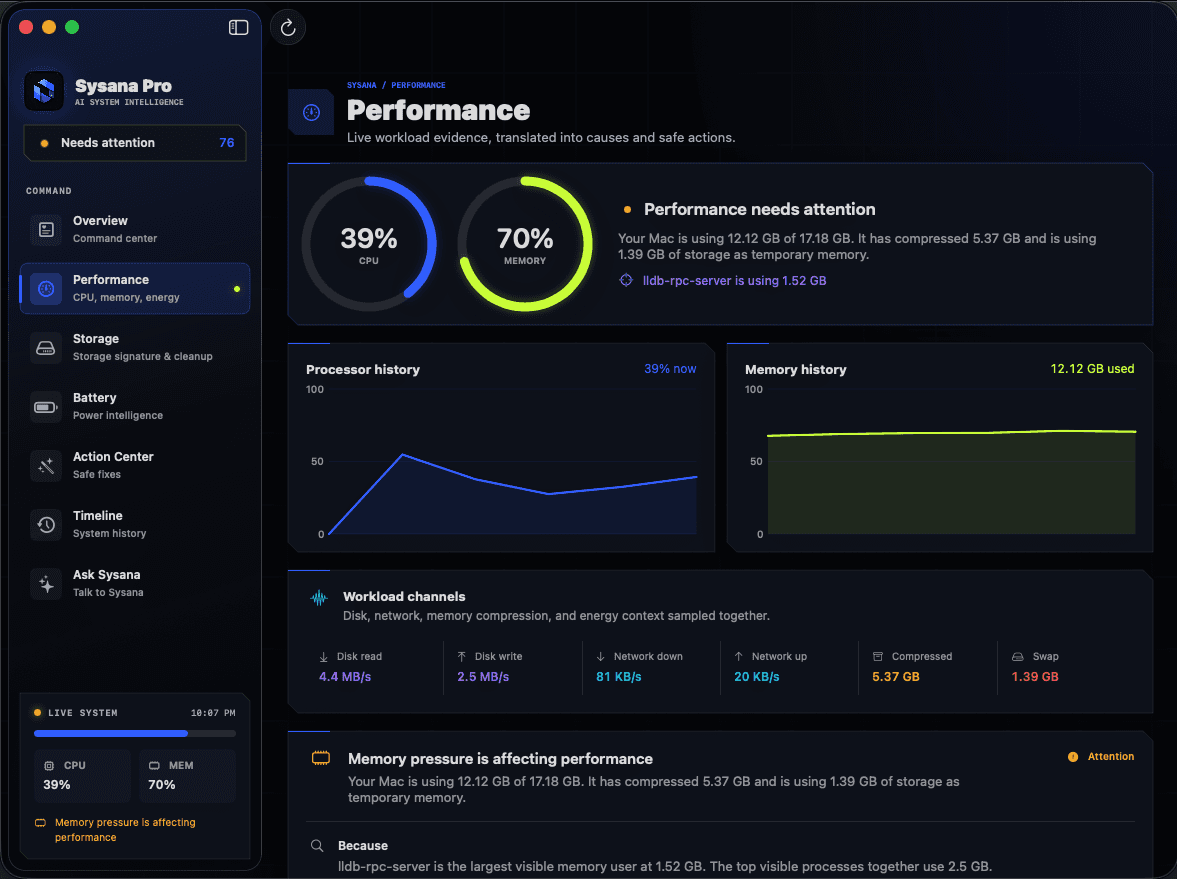
Start with the evidence.
A slow Mac is usually waiting on one constrained resource: processor time, memory, storage, or cooling. Start by checking whether the slowdown is constant or tied to one app, then use Activity Monitor and Storage settings to identify the bottleneck before deleting files or installing another utility.
First, identify what kind of slowdown you have
The word slow can describe several different problems. Apps may take a long time to open, typing may lag, the pointer may beach-ball, or the entire Mac may become warm and unresponsive. Those symptoms point to different causes, so note what you were doing and whether the problem disappears after closing one app.
A brief slowdown after a macOS update, a restart, or connecting a large photo library can be normal while Spotlight, Photos, or cloud services index and synchronize data. A slowdown that repeats at the same time every day or whenever the same app opens is more useful evidence.
Run these nine checks in order
Work from reversible checks toward deeper troubleshooting. You should not need to delete system files or disable macOS security features.
- Restart once
A restart clears stalled processes and gives you a clean baseline. If performance returns to normal and stays normal, the cause may have been temporary.
- Check CPU activity
Open Activity Monitor and select CPU. Sort by % CPU. A process that remains high while you are not asking it to do work deserves attention; a short spike while exporting or installing is expected.
- Read memory pressure
In Activity Monitor, select Memory and watch the graph. Green generally means memory is being managed efficiently. Repeated yellow or red pressure, rising swap, and lag together suggest that your current workload is exceeding available memory.
- Check free storage
Open System Settings > General > Storage. Very limited free space can affect updates, swap, caches, and app performance. Review large files and unused apps before touching System Data.
- Review login items
Open System Settings > General > Login Items & Extensions. Turn off nonessential background items you recognize, then restart and compare. Do not disable security or backup software without understanding the impact.
- Install macOS and app updates
Compatibility problems and runaway background tasks are often corrected in updates. Back up important data first and install updates from System Settings or the App Store.
- Check heat and airflow
Move the Mac to a hard, ventilated surface and disconnect unneeded peripherals. Sustained heat can cause the system to reduce performance to stay within safe operating limits.
- Test without the suspect app
Quit the app that was active when the slowdown began. If the problem stops, update the app, reduce its workload, or contact its developer before making system-wide changes.
- Use Safe Mode or Apple Diagnostics
If the slowdown persists after a restart with ordinary workloads, Safe Mode can help isolate startup software. Apple Diagnostics can help identify certain hardware problems.
How CPU, memory, storage, and heat interact
A single number rarely tells the full story. High CPU use can increase heat and energy consumption. Memory pressure can push data into swap on the startup disk. A nearly full or busy disk can make that swap slower. Looking at the signals together is more reliable than treating every high number as a problem.
This is also why closing random processes or clearing every cache can make troubleshooting harder. Change one thing at a time, wait long enough to compare, and keep a note of what improved the symptom.
What not to do
Do not delete unfamiliar folders from Library or System, run destructive Terminal commands from an online checklist, or disable Gatekeeper to install an unknown cleaner. A large file is not automatically junk, and a system process with a strange name is not automatically malware.
If the Mac repeatedly shuts down, shows storage errors, cannot start normally, or becomes dangerously hot, back up your data and contact Apple Support or an authorized service provider.
Understand what your Mac is telling you.
Sysana connects performance, memory, storage, battery, energy, and thermal context in one clear diagnostic view. You review every recommendation.
Frequently asked questions
Why is my Mac suddenly slow?
A sudden slowdown often follows a new app, update, background sync, indexing task, or process that has stopped responding. Restart once, then compare CPU, memory pressure, storage, and temperature while the symptom is happening.
Does a full Mac make it slower?
Very limited free space can interfere with updates, temporary files, caches, and memory swap. Freeing space can help when storage is the constraint, but it will not fix an unrelated CPU, memory, network, or hardware problem.
Will clearing cache speed up my Mac?
Not necessarily. Caches are designed to make repeated work faster and are often recreated. Clear a specific cache only when troubleshooting that app or when reliable instructions identify it as the cause.