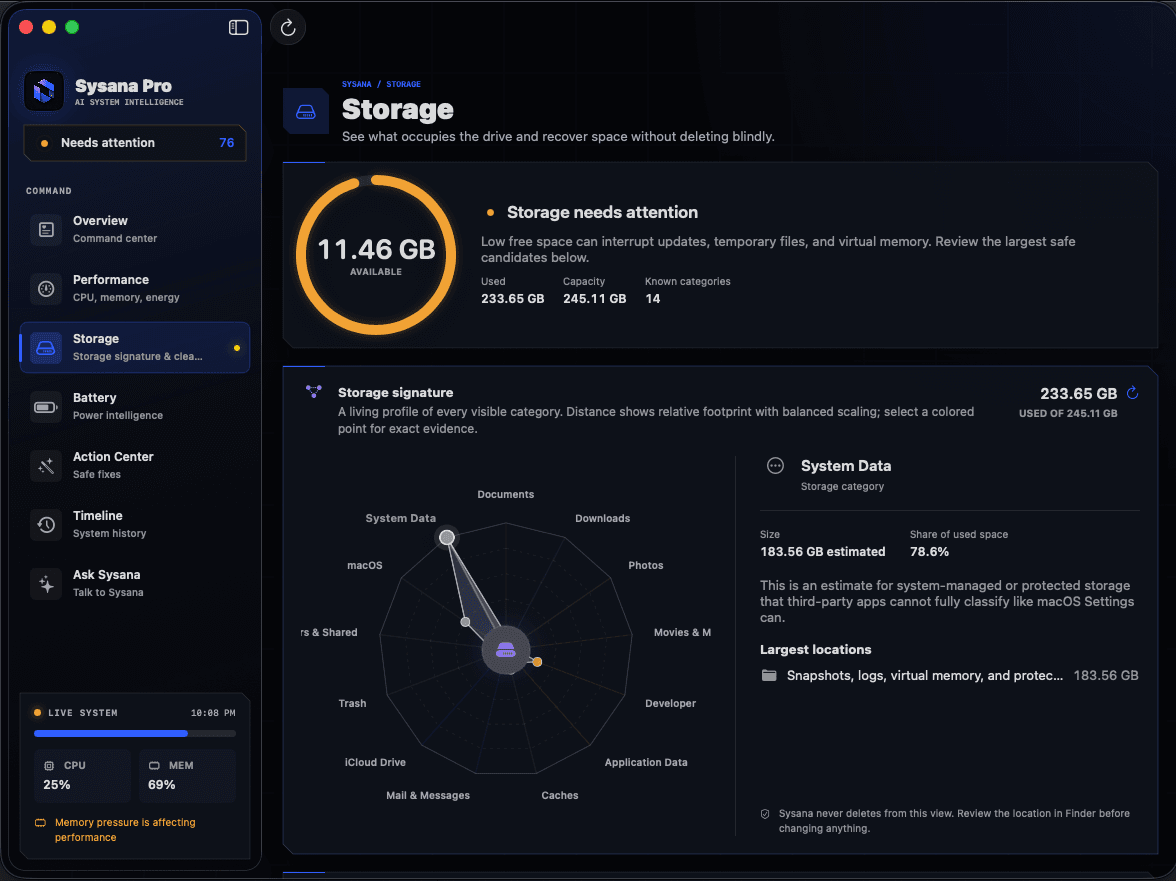
Start with the evidence.
Open System Settings > General > Storage and start with categories you control: Applications, Documents, Downloads, Trash, and old device backups. Move or delete known files first. Avoid manually removing items from System or Library just because the System Data category looks large.
What usually fills a Mac
Large video projects, photo libraries, games, virtual machines, downloaded installers, device backups, and years of message or mail attachments can consume far more storage than small temporary files. Start with the largest understandable category instead of hunting for thousands of tiny files.
The storage chart is an estimate and may take time to update. Some items can appear under a different category while macOS finishes calculating, so use it as a map rather than an exact inventory.
A safe cleanup order
Back up files you cannot replace. Then use this order so every change is understandable and reversible where possible.
- Empty Trash after reviewing it
Files in Trash still use disk space. Open Trash, restore anything important, and empty it only when you are certain.
- Sort Downloads by size
In Finder, open Downloads, switch to list view, and sort by Size. Old installers, archives, and exported media are common large items.
- Review large Documents
Use System Settings > General > Storage or Finder search to locate large files. Move completed projects to an external drive before deleting the local copy.
- Uninstall apps you no longer use
Remove apps using the developer's documented method when available. Some professional apps include uninstallers because dragging the app to Trash does not remove every support component.
- Remove old iPhone or iPad backups
Review device backups in Finder or the Storage view. Keep the backup you may need for recovery and remove only devices or versions you recognize.
- Optimize media storage
Apple's storage recommendations can keep eligible media or documents in iCloud and remove watched downloads. Read each option before enabling it so you understand what remains available offline.
- Restart and recheck
Storage categories and purgeable space may not update immediately. Restart after a meaningful cleanup and allow macOS time to recalculate.
Why System Data can look enormous
System Data is a broad category. It may include logs, caches, temporary files, local snapshots, app support data, and items macOS cannot place elsewhere. Its size can move significantly without indicating a fault.
Do not browse /System or /Library and delete items based only on size. If System Data remains unusually large after a restart and sufficient time, check Time Machine snapshots, developer tools, virtual machines, and app-specific support folders using documentation from the relevant vendor.
How much free space should you keep?
There is no single percentage that fits every Mac. The practical goal is enough room for the next macOS update, your largest normal workload, temporary files, and memory swap. Video editing and virtual machines need far more headroom than web browsing.
Treat low-storage warnings as a prompt to investigate, not permission to delete unknown files. The safest cleanup is the one where you know what each item is and why you no longer need it.
Understand what your Mac is telling you.
Sysana connects performance, memory, storage, battery, energy, and thermal context in one clear diagnostic view. You review every recommendation.
Frequently asked questions
Why is System Data so large on my Mac?
System Data combines several kinds of files, including caches, logs, local snapshots, temporary items, and app support data. Its reported size can change as macOS recalculates storage.
Is it safe to delete cache files?
Delete only a specific cache when the app developer or trusted support instructions recommend it. Many caches are useful, and applications may recreate them immediately.
Why did free space not change after deleting files?
The files may still be in Trash, a local snapshot may temporarily retain data, or the Storage view may still be recalculating. Review Trash, restart, and check again later.