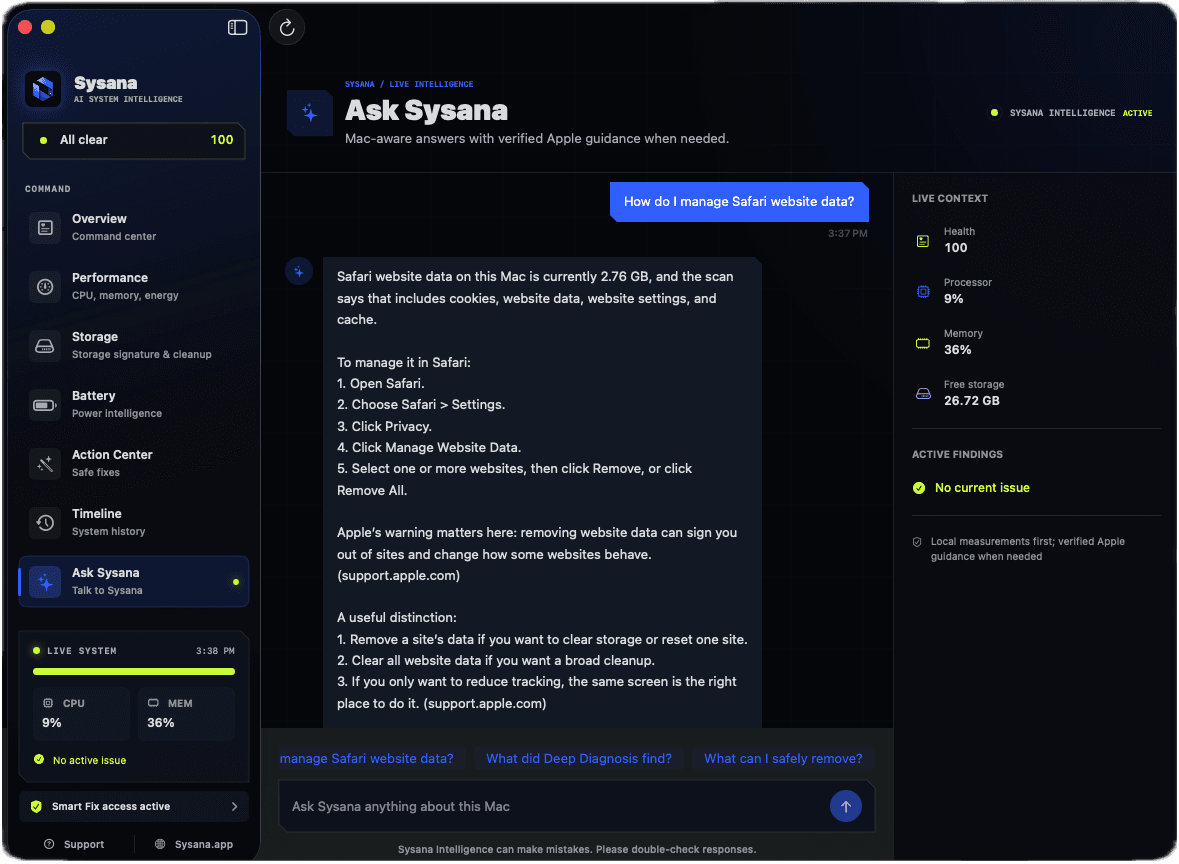
Start with the evidence.
Open Ask Sysana when you want an explanation of what your Mac's current diagnostic signals mean together. Ask one specific question, include when the problem happens, and describe what changed. Sysana Intelligence combines your question with a compact summary of available performance, memory, storage, battery, thermal, process, and diagnosis signals. It explains the evidence and suggests cautious next steps, but it does not delete files, terminate processes, change settings, or guarantee a diagnosis.
What Sysana Intelligence is
Sysana Intelligence is the conversational layer of Sysana. Instead of making you interpret every metric alone, it connects a question you write with a compact summary of the diagnostic evidence currently available from your Mac. The goal is not to produce a generic list of Mac tips. It is to explain which signals support an answer, which signals do not, and what you can safely check next.
This distinction matters because the same symptom can have different causes. A slow Mac might be constrained by memory pressure, sustained processor work, low free storage, heat, a background process, or something outside the Mac such as a network service. Sysana Intelligence can compare the available signals before suggesting a direction.
The feature is informational and read-only. It can explain recommendations and guide you to appropriate controls, but in this App Store version it does not delete files, uninstall applications, clear browser data, terminate processes, or silently change macOS settings.
How diagnostics and conversation work together
Sysana's core monitoring and scans run locally. Subject to the permissions you grant, the app can evaluate system metrics, process and application names, resource values, battery and thermal signals, storage capacity, storage categories, maintenance findings, and other evidence used by its diagnostic views.
When you deliberately send a question to Sysana Intelligence, the app creates a compact context summary from available signals. That summary can include Mac metrics, diagnosis text, visible process names and resource values, storage category totals, maintenance totals, Deep Diagnosis totals, website-data totals, and notes explaining when access is partial or unavailable.
The answer should be read as an interpretation of a snapshot. Conditions can change after the question is sent, and a missing permission or incomplete scan can limit what the snapshot proves. If the answer says evidence is incomplete, grant access only if you are comfortable doing so, complete the relevant scan, and ask again.
How to ask your first question
A useful first question names the symptom, its timing, and the change you are trying to understand. You do not need to know technical vocabulary. Plain descriptions such as “my Mac becomes slow during video calls” or “storage dropped after I installed an update” provide a better starting point than a single word such as “slow.”
- Open Ask Sysana
Use the Ask Sysana view after Sysana has had time to collect the current diagnostic state. If the issue is happening now, leave the affected workload running long enough for the relevant signal to appear.
- Review the cloud notice
Before first use, read the in-app explanation of the optional cloud boundary. Continue only if you are comfortable sending the described question and compact diagnostic context.
- Describe one problem
Ask about one outcome at a time: slowdown, battery drain, storage growth, heat, fan activity, memory pressure, or a specific process. Focused questions produce clearer reasoning.
- Add timing and context
Say when it started, whether it is constant or occasional, which app or task was active, and what changed shortly beforehand.
- Send and inspect the evidence
Read which signals the answer relied on. Distinguish measurements from possibilities, and note any missing access or uncertainty before following a recommendation.
Question patterns that produce useful answers
The strongest questions invite comparison, explanation, or a safe sequence of checks. You can use the following patterns as starting points and replace the examples with your real situation.
- Ask for the leading explanation
Try: “Why is my Mac slow right now, and which current signal is the strongest evidence?” This asks for a ranked interpretation rather than a generic checklist.
- Compare two possible causes
Try: “Is the slowdown more consistent with CPU use or memory pressure?” A comparison encourages the answer to explain what supports each possibility.
- Connect a process to a symptom
Try: “This process is using a lot of energy. Could it explain my battery drain, and what should I verify before quitting it?”
- Ask about change over time
Try: “My free storage fell this week. Which category appears responsible, and what can I review safely?” Current summaries cannot prove every historical cause, so mention dates and changes you remember.
- Request a reversible next step
Try: “What is the safest first check, and how will I know whether it helped?” This keeps troubleshooting measurable and avoids changing several things at once.
- Ask for an uncertainty check
Try: “What can the current data confirm, what is only a possibility, and what information is missing?” This is especially useful before deleting data or changing a security setting.
Use follow-up questions to narrow the cause
A first answer should begin an investigation, not end one. Sysana can include a short recent conversation window with the next request so a follow-up can build on the same issue. Refer to the previous evidence directly: “You said memory pressure is normal—what should I check next?” or “Why does that process use energy only when my display is connected?”
Good follow-ups test one branch of the explanation. Ask what observation would support the theory, what result would rule it out, or which built-in macOS screen can confirm it. If the symptom changes or you begin investigating a different problem, start with a fresh description rather than relying on old context.
The app's temporary conversation context is not a permanent diagnostic record. Preserve any important steps or support information separately, and take a new measurement when the Mac's state has changed.
How to read an Intelligence answer critically
Separate the answer into four layers: the observed signals, the interpretation, the proposed next step, and the uncertainty. A measured storage total or memory-pressure state is evidence. A statement about what might have caused it is an interpretation and may require another check.
Prefer answers that connect a recommendation to a visible signal and explain how to verify the result. Be cautious when an answer sounds certain despite incomplete permissions, an unfinished scan, a symptom that is no longer occurring, or a question about hardware that software cannot inspect directly.
Sysana Intelligence may use web search restricted to official Apple Support and Apple Developer sources when current platform guidance would improve an answer. A source link supports the general macOS procedure it describes; it does not by itself prove that the procedure is the correct diagnosis for your Mac.
- Confirm the observation
Check that the named process, category, metric, or diagnosis is visible and relevant to the time of the problem.
- Check the confidence language
Words such as may, appears, or is consistent with indicate a possibility. Do not turn a qualified explanation into a certainty.
- Prefer reversible actions
Start with observation, closing an app normally, restarting, updating trusted software, or changing one documented setting. Back up important data before maintenance.
- Measure again
Repeat the same workload and compare the relevant signal. A recommendation is useful only if the symptom and evidence improve together.
What leaves your Mac when you press Send
Using Sysana Intelligence is optional and creates a separate cloud boundary from local diagnostics. When you press Send, Sysana transmits your question, a short recent conversation window, app version, a random installation identifier, and a compact diagnostic summary over HTTPS to Sysana's service. OpenAI processes the question and compact context to generate the response. Subscription evidence may also be verified when needed to confirm access.
The cloud payload excludes document contents, photo contents, messages, passwords, browser history, visited domains, complete local file paths, and local learning-memory entries. It can include process and app names, diagnostic labels, resource values, category totals, and access-state notes, which may still reveal information about how you use your Mac.
Do not put passwords, payment information, private document text, personal secrets, or data you do not have permission to share in a question. You can revoke cloud consent and stop using Intelligence without disabling Sysana's local diagnostic features. For complete, current details about processing and retention, read the Sysana Privacy Policy.
When not to rely on Sysana Intelligence
AI-generated explanations can be incomplete, outdated, or wrong. Do not rely on them as a substitute for a backup, malware protection, professional data recovery, hardware repair, or emergency expertise. Never disable macOS security, run an unfamiliar Terminal command, erase a disk, or delete unknown system files solely because an AI answer suggested it.
Stop software troubleshooting and contact Apple or a qualified service provider when a Mac has battery swelling, liquid damage, burning smells, repeated shutdowns, physical noises, display damage, a failed hardware diagnostic, or important data at risk. For suspected account compromise, use Apple's official account-security process from a trusted device.
Before a destructive or difficult-to-reverse change, ask Sysana to explain the risk, verify the procedure against current official documentation, maintain a current backup, and confirm that the action applies to your exact Mac model and macOS version.
Understand what your Mac is telling you.
Sysana connects performance, memory, storage, battery, energy, and thermal context in one clear diagnostic view. You review every recommendation.
Frequently asked questions
Does Sysana Intelligence upload my files?
Its compact cloud payload excludes document contents, photo contents, messages, passwords, browser history, visited domains, complete local file paths, and local learning-memory entries. It can include your question, recent conversation context, process and app names, diagnostic labels, resource values, category totals, and access-state notes.
Can Sysana Intelligence make changes to my Mac?
No. In this App Store version, it explains evidence and recommended steps but does not delete files, uninstall apps, clear browser data, terminate processes, or silently change macOS settings.
Does Sysana Intelligence require an internet connection?
Yes for the Intelligence answer, because the optional feature sends your question and compact diagnostic context to Sysana's cloud service and OpenAI. Core local diagnostics do not require cloud Intelligence.
Why use Sysana Intelligence instead of asking a general chatbot?
Sysana can ground the conversation in a compact summary of current diagnostic signals from your Mac. That context can make the explanation more relevant, although it still cannot guarantee a diagnosis and should be checked against the visible evidence.
Can Sysana Intelligence answers be wrong?
Yes. AI output can be incomplete, outdated, or incorrect. Verify important facts, prefer reversible actions, use official documentation for consequential changes, and seek professional support for hardware, security, or data-loss risks.
Can I turn off Sysana Intelligence and keep local diagnostics?
Yes. You can revoke cloud consent or simply avoid sending questions without disabling Sysana's local monitoring, scans, and diagnostic views.