Start with the evidence.
Fast battery drain does not always mean the battery is damaged. First compare current energy use with battery health: Activity Monitor shows which apps are consuming energy now, while System Settings reports the battery's longer-term condition.
Battery health and energy use are different
Battery health describes how the battery has aged and how much capacity it can hold compared with when it was new. Energy use describes what the Mac is doing right now. A healthy battery can drain quickly during demanding work, and an aged battery can drain quickly even during a light workload.
Start with the symptom: note the charge percentage, time, apps open, display brightness, connected accessories, and whether the Mac feels warm. Compare the same workload after making one change.
Seven checks for unexpected battery drain
Use the Mac on battery power for a representative period, then review the evidence.
- Open Activity Monitor > Energy
Sort by Energy Impact for current use and review 12 hr Power on supported Mac laptops. An app near the top is not automatically faulty, but it is a good place to investigate.
- Check Battery settings
Open System Settings > Battery. Review usage history and battery health. If macOS recommends service, arrange an evaluation rather than relying on software cleanup.
- Reduce display demand
Temporarily lower brightness, shorten the display-off interval, and disconnect external displays. Displays and graphics workloads can materially change battery life.
- Look for background work
Cloud synchronization, photo analysis, browser tabs, video calls, indexing, and software updates can continue after the visible task ends. Let legitimate work finish or pause it when appropriate.
- Review login and background items
Disable only nonessential items you recognize, restart, and compare. Avoid disabling backup, security, accessibility, or device-management tools without understanding their role.
- Check heat
High sustained energy use often creates heat. Use the Mac on a hard surface with clear airflow and test without unneeded hubs or accessories.
- Update macOS and apps
Updates can correct compatibility and background-activity problems. Install from trusted sources after backing up important data.
Why browsers often appear near the top
A browser represents many tabs, extensions, media sessions, and web apps. Instead of quitting the browser permanently, close heavy tabs, disable an extension temporarily, and compare. Video conferencing, streaming, animated pages, and cloud documents can all raise energy use.
If one website repeatedly causes high energy impact, test it in a private window without extensions or in another browser. That isolates the site from the browser configuration.
When battery drain needs service
Seek service if Battery settings reports Service Recommended, the Mac shuts down unexpectedly with charge remaining, the case or trackpad changes shape, or the battery appears swollen. Stop using a device with physical battery damage and follow Apple's safety guidance.
Software can explain patterns and identify workloads, but it cannot restore lost chemical capacity or repair damaged hardware.
Understand what your Mac is telling you.
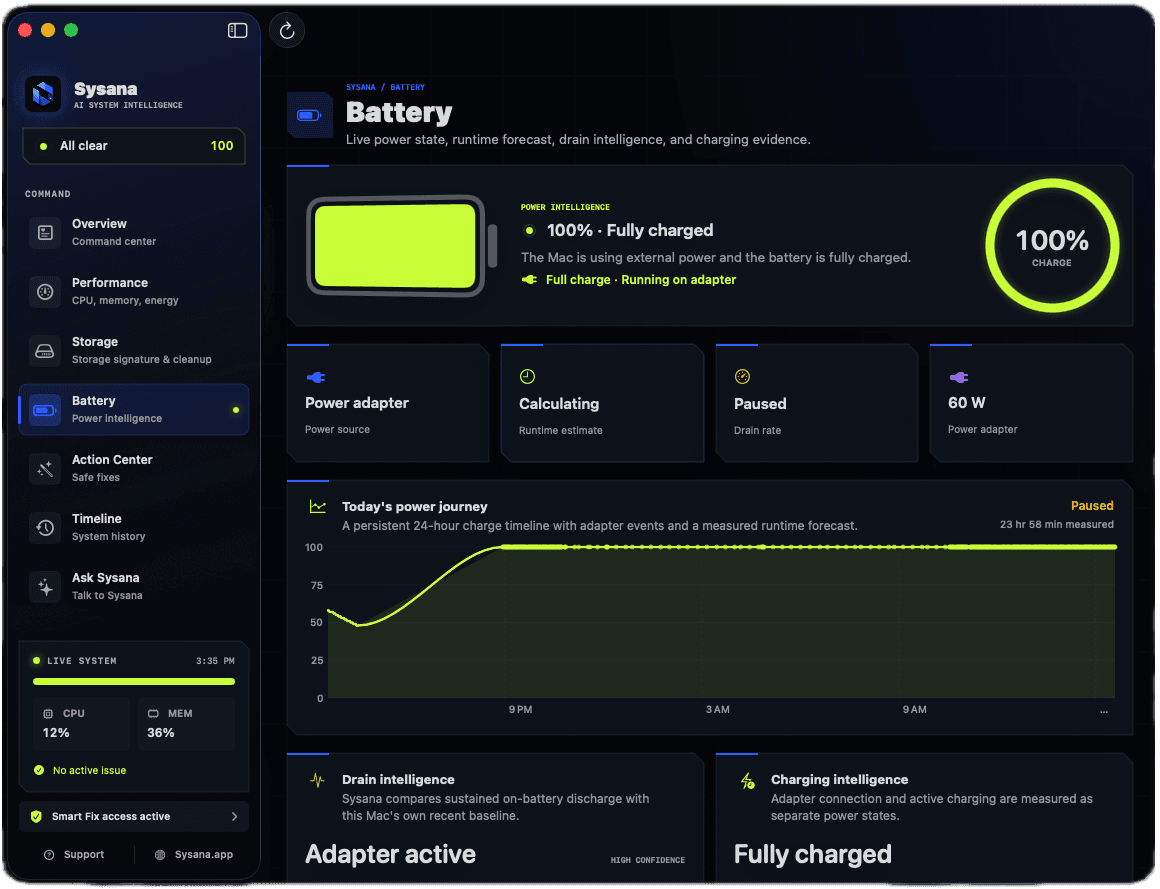
Sysana connects performance, memory, storage, battery, energy, and thermal context in one clear diagnostic view. You review every recommendation.
Frequently asked questions
Why is my MacBook battery draining while it sleeps?
Network access, connected accessories, background tasks, or a process preventing sleep can consume power. Disconnect accessories, review Activity Monitor's Energy pane, update macOS, and compare after a restart.
Does high battery cycle count mean the battery is bad?
Cycle count is useful context, but battery condition and real-world capacity matter too. Check Battery Health in System Settings and follow macOS service recommendations.
Can an app fix battery health?
No. Software can identify energy use and help reduce unnecessary workload, but it cannot reverse chemical aging or repair a damaged battery.